What is an EPG?
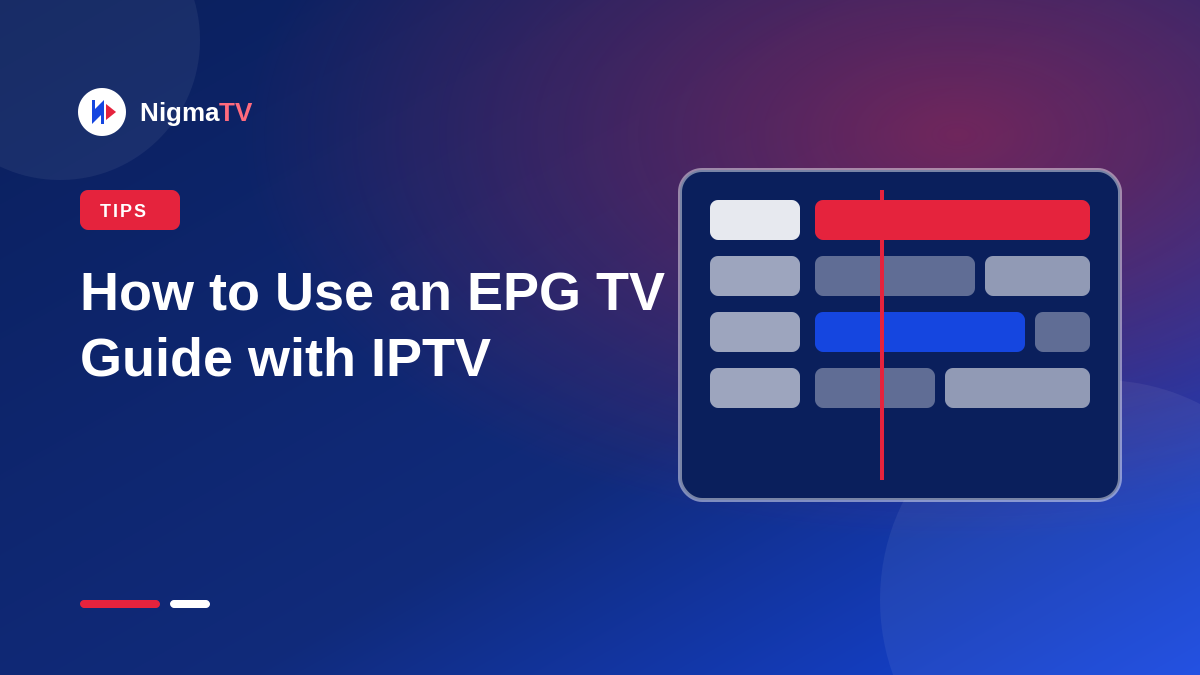
EPG stands for Electronic Programme Guide. It's the grid you've seen on traditional TV boxes: channels down the side, times across the top and programme names in the boxes. In an IPTV player, the EPG shows what's on now and next for each channel, and often several days ahead.
The guide data comes separately from the video streams. Your player downloads it and matches each listing to the right channel. When that works, browsing live TV becomes fast and familiar.
How to load the guide
- Sign in to your subscription. With a login (Xtream Codes) the guide is often included automatically. With an M3U playlist, you may be given a separate guide link.
- Find the EPG option. Look in the player's settings for "EPG", "TV Guide" or "Programme Guide".
- Update or refresh. Tap Update EPG (or similar). Guide files are large, so allow a minute or two.
- Open the guide view. Many players have a dedicated guide screen; others show now/next information under each channel.
Fixing missing or incorrect listings
The guide is completely empty
Refresh the EPG manually and wait for it to finish. Restart the player afterwards. If you use an M3U playlist, check whether a separate EPG link needs to be added.
Some channels show "No information"
Not every channel carries guide data, especially smaller or event-only channels. That's normal and doesn't affect playback.
Listings are an hour or more out
This is usually a time-zone setting. Look for "EPG time shift" or "time offset" in the player settings and adjust it until programmes line up with the current time. Also check your device's own date, time and time zone.
The guide won't update
Clear the player's cache (on Android: Settings → Apps → [player] → Storage → Clear cache), then sign in and refresh again. Some players let you set automatic EPG updates every day.
Getting more from the guide
- Favourites first: add your regular channels to a favourites group and open the guide for that group only — far quicker than scrolling thousands of channels.
- Reminders: some players let you set a reminder for an upcoming programme so you don't miss kick-off.
- Catch-up: on channels that support it, compatible players may let you watch recent programmes from the guide.
- Search: use the player's search to find a programme by name across the guide.
Setting up a new device? Follow our Android or Apple guides first, then come back here to configure the EPG. If you're curious about login types and how they affect the guide, read M3U vs Xtream Codes.