What you need
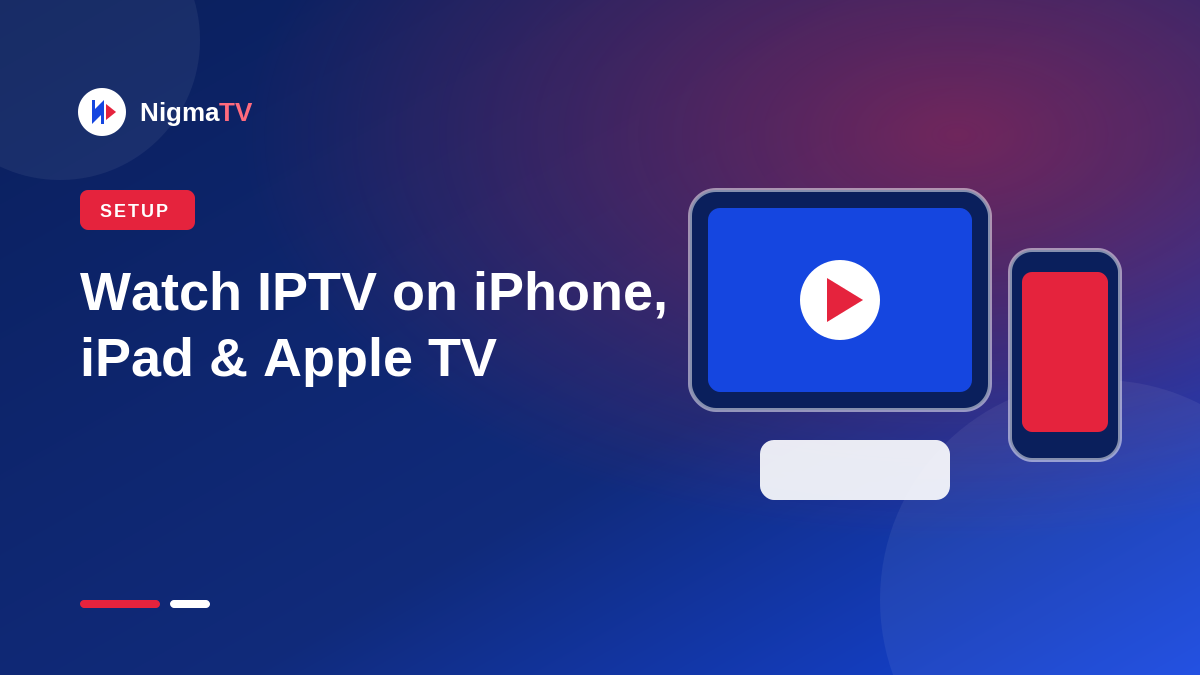
- An iPhone or iPad on a recent version of iOS / iPadOS, or an Apple TV HD or Apple TV 4K
- An Apple ID to download apps from the App Store
- Your IPTV subscription details — NigmaTV customers receive them on WhatsApp
- A stable internet connection (around 25 Mbps for 4K on Apple TV 4K)
iPhone and iPad setup
- Open the App Store and search for the IPTV player recommended by your provider. Several players are available; some are free with optional upgrades, others are paid.
- Install the app and open it. Allow local network access if iOS asks — some players need it to cast or find devices.
- Choose how to add your subscription: login (Xtream Codes) with username, password and server URL, or a playlist link (M3U).
- Enter the details and save. The channel list and on-demand sections will load.
On iPad, many players offer split-view or picture-in-picture, so you can keep a match playing in a corner while you browse.
Apple TV setup
- On Apple TV, open the App Store and search for a compatible IPTV player.
- Install and open it. Some players let you add the playlist from your iPhone (by scanning a QR code or using a companion web page), which saves typing with the Siri Remote.
- Add your login or playlist link and wait for the channels and guide to load.
- Set your favourite channels and enable the TV guide if the player supports it.
Apple TV 4K handles 4K streams well when connected by Ethernet. If you use Wi-Fi, keep the Apple TV within good range of the router.
Watching on a TV with AirPlay
No Apple TV? If your smart TV supports AirPlay, you can tap the AirPlay icon in a compatible player on your iPhone or iPad and send the stream to the TV. Not every player supports AirPlay for live streams, and quality depends on your Wi-Fi, so a native TV app or Apple TV usually gives a smoother result. For TV-specific options, see our Android TV guide if your television runs Google TV.
Tips for the best experience
- Update iOS and the player regularly for performance fixes.
- Turn off Low Data Mode on Wi-Fi or mobile data while streaming.
- Use the TV guide — once loaded, it makes channel surfing much faster. Our EPG guide explains how.
- Watch mobile data — HD on a phone uses noticeably less data than 4K on a TV, but live TV still adds up quickly.
Try it on your iPhone or Apple TV: request a NigmaTV free trial and our team will recommend a player and guide you through setup.